Paste a link.
A video, a Reel, a clip. Add one link or queue up to 50 at once.
Your favourite videos, a little closer.
Paste a link. Pick your format.
Keep it on your computer.
Windows & Linux · Free & open source
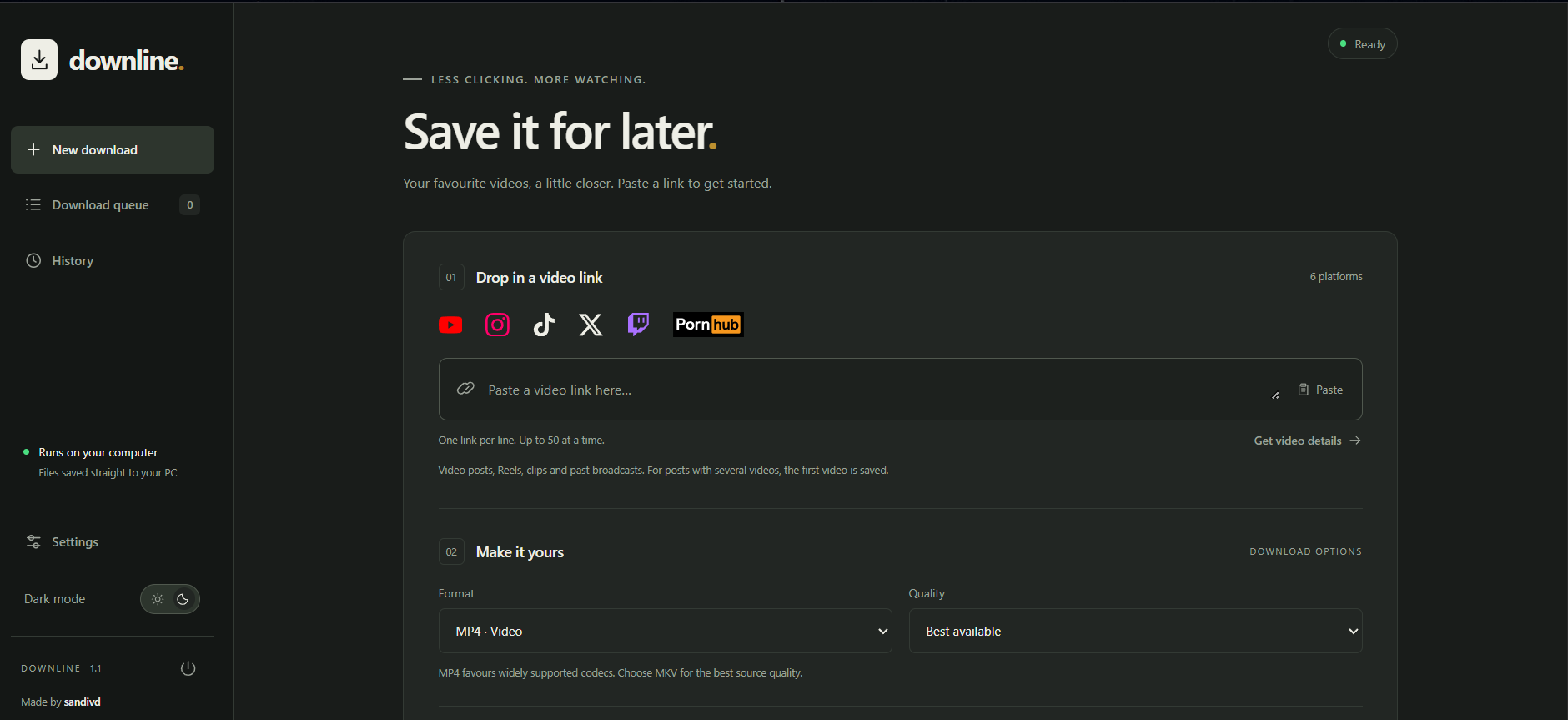
A video, a Reel, a clip. Add one link or queue up to 50 at once.
Choose MP4 or MKV for video, or MP3 for audio. Pick your preferred quality.
Save to your own folder. Find finished downloads in your history, ready to open.
Available quality depends on the original video. Site restrictions and sign-in requirements still apply.
A clear queue for what’s on the way.
A history for what’s already yours.
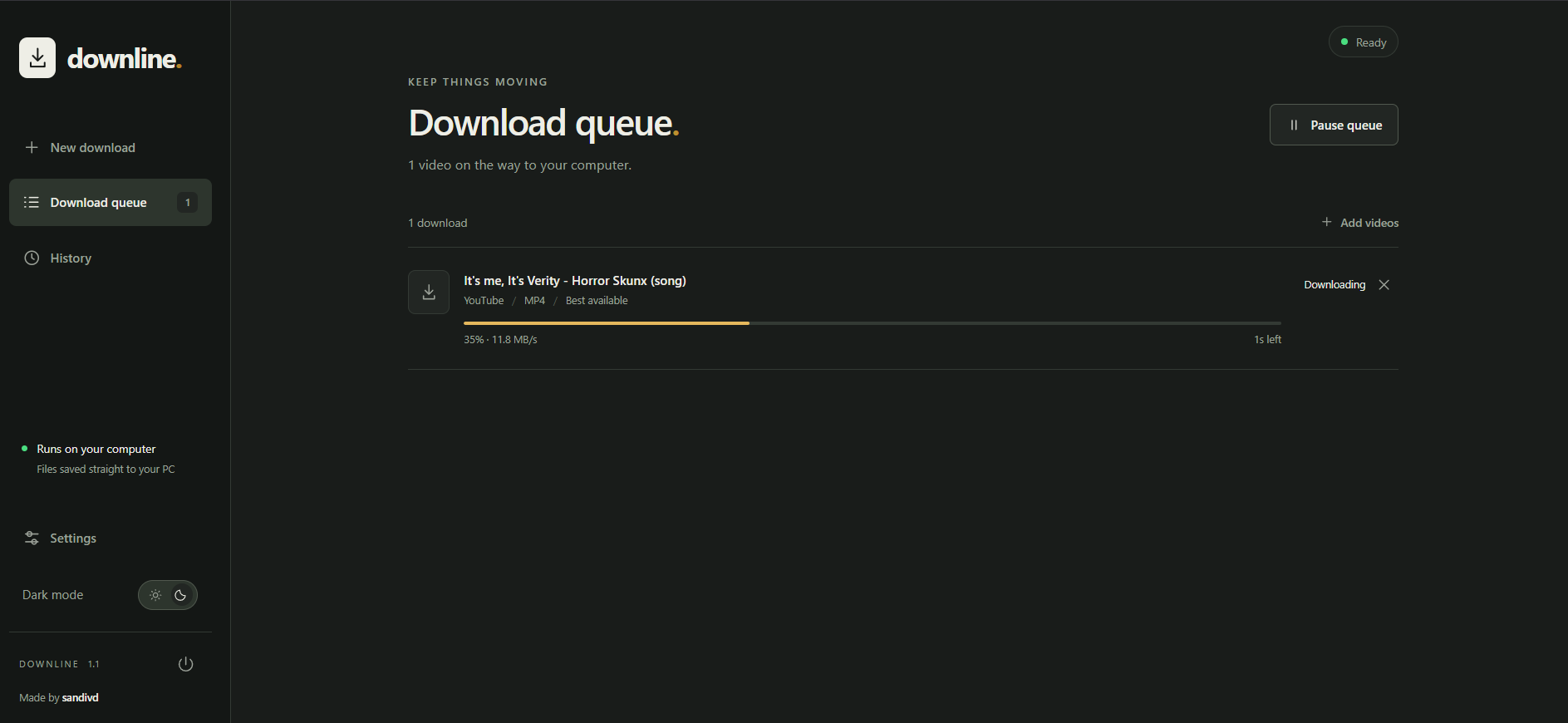
Track progress, pause waiting downloads, or cancel individual jobs. Set up to three simultaneous downloads.
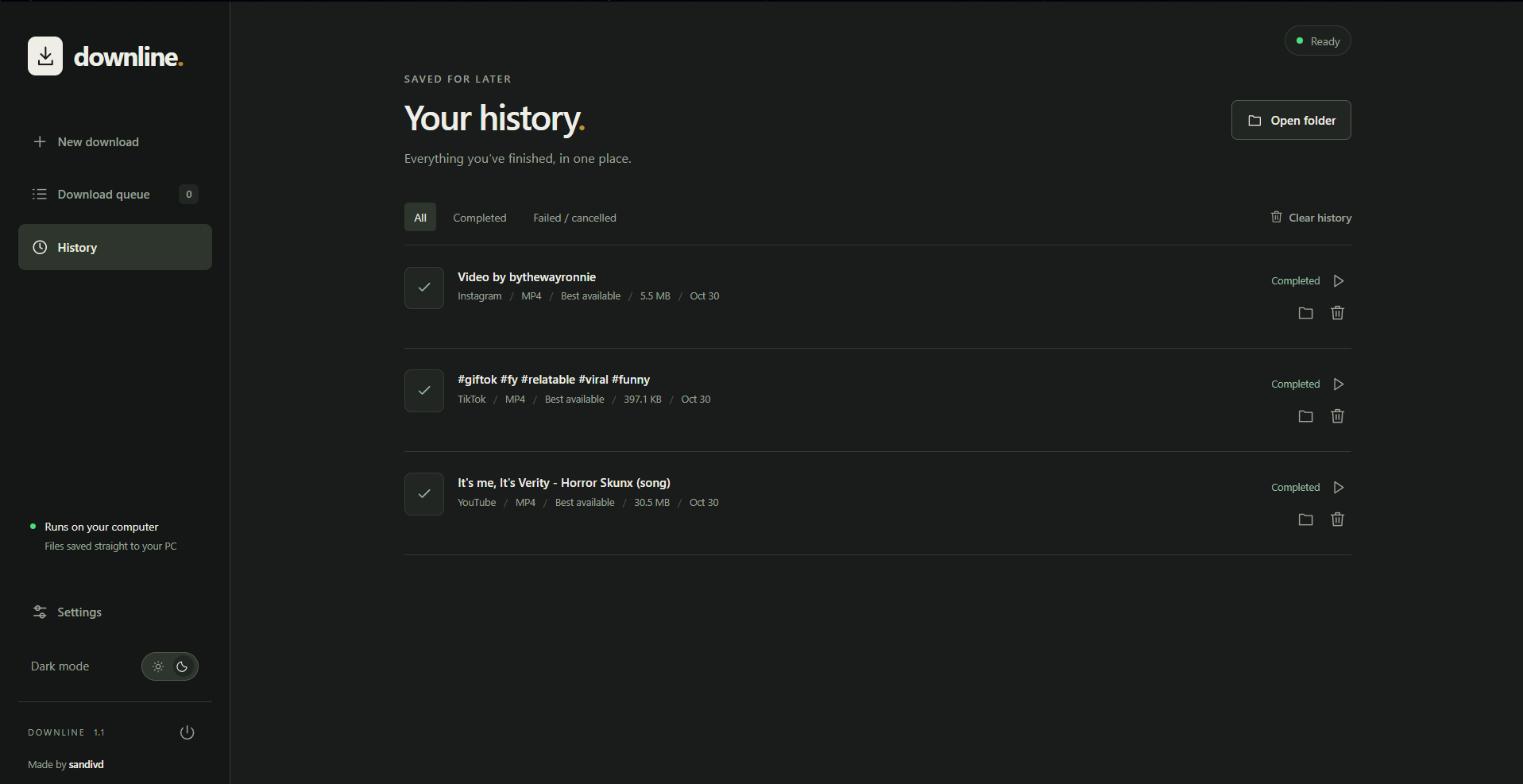
Find completed downloads in one place. Open the video, reveal its folder, or clear the list without deleting your files.
Pick a folder and keep your downloads there. No Downline cloud storage to manage.
Settings and history stay on your computer. The download engine connects directly to the source sites.
A clean interface with both themes, a remembered preference, and room to breathe.
Download and extract the entire ZIP.
Double-click Start Downline.cmd.
Leave setup open while it downloads the tools. Then you’re ready.
Download and extract the entire TAR.GZ.
Open a terminal in the extracted Downline folder and run bash start-downline.sh.
Install Python 3 and FFmpeg first. The launcher downloads the remaining tools and opens your default browser. Linux setup guide ↗
This website introduces Downline and provides the download. The app runs a small service on your PC and uses a browser window for its interface. Downloads happen on your computer; you can’t download videos through this website.
Downline accepts individual videos from YouTube, Instagram, TikTok, X / Twitter and Pornhub, plus Twitch clips and past broadcasts. It doesn’t download whole profiles, playlists, photo-only posts or active live streams. Posts with several videos normally save the first video.
Support doesn’t guarantee every link works. Source-site changes, regional restrictions and account access can prevent downloads. Some sites may need your own cookies file in Settings. Downline doesn’t bypass age checks, DRM or regional blocks.
Downloads go to Downloads / Downline by default, or the folder you choose. Settings and history are stored locally on your PC. Clearing the history removes entries, not your downloaded videos. No Downline account is needed.
On Windows, setup downloads Python, yt-dlp, FFmpeg and Deno. On Linux, install Python 3.10+, FFmpeg and xdg-utils with your package manager first; the launcher downloads yt-dlp and Deno. Downloaded tools live beside the app. Keep the setup window or terminal open and allow a few minutes. Source and licence information are included in both packages.
Use Settings → Check for updates to update the download engine after finishing your queue. To update Downline itself, quit with the sidebar power button and replace the app files, keeping the existing runtime folder. Closing the browser tab leaves the local service running. On Linux, keep the launcher terminal open until you quit.